





































Your smartphone power button has hidden features – Here’s how to use them smartly
Your smartphone’s power button hides powerful shortcuts for camera, flashlight, emergency SOS, screenshots, and more. Discover smart settings that transform this simple button into a productivity and safety tool.
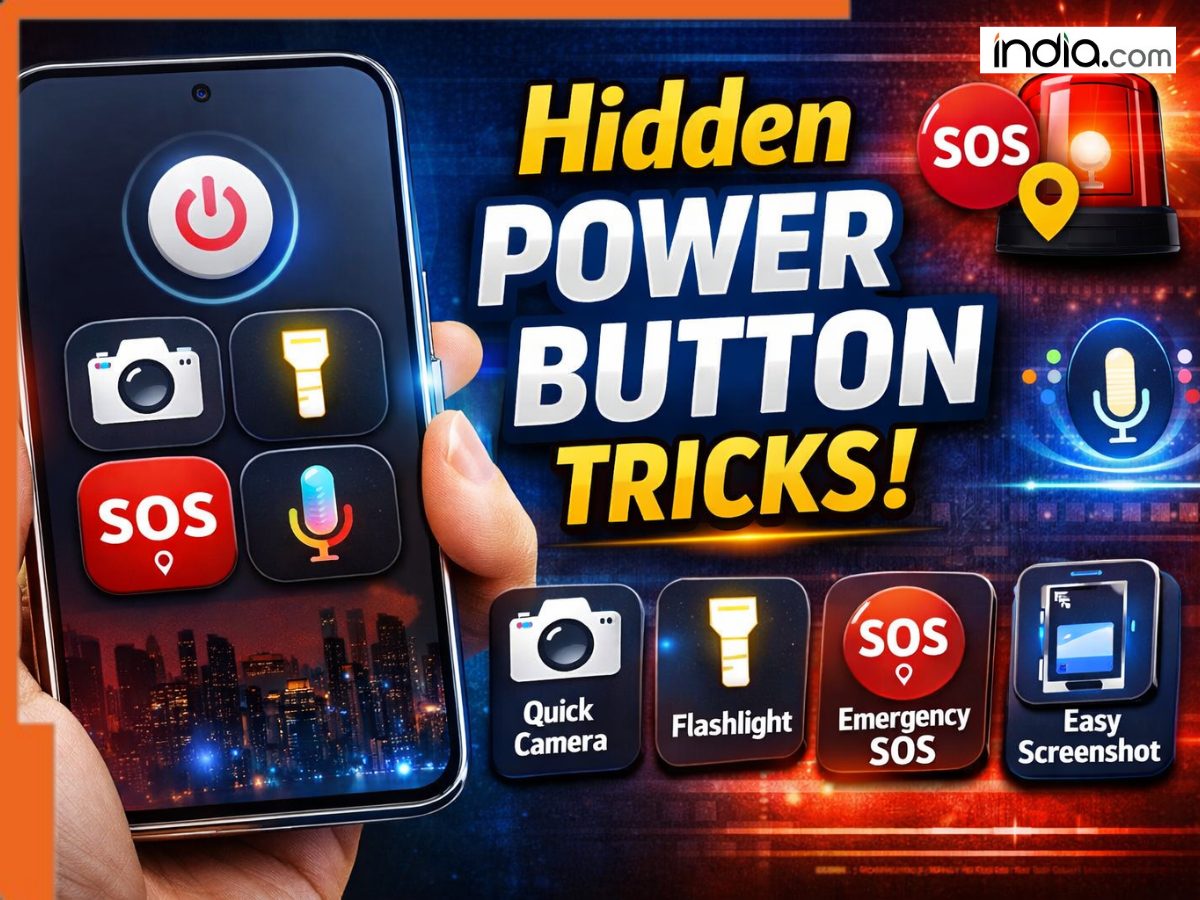
We all use our smartphones’ power buttons for waking the device up and shutting it down, but there’s more. Burying deep within settings menus on Android and iPhone, you can use those sleepy buttons to fire up powerful actions and productivity shortcuts. Learn how to set these tips and tricks for one of the most underrated parts of your smartphone.
Fast-Open Your Camera With The Power Button
Quickly snapping a photo can be difficult when your camera app takes ages to open or you’ve accidentally cleared your home screen. Luckily, you can set your Android phone to open Camera from its lock screen with the power button shortcut.
Double-tap your phone’s power button to open the camera instantly without unlocking your home screen first. Need to take a photo in a hurry? The power button is your friend.
Launch Your AI Assistant Hands-Free
If you want hands-free access to your phone’s AI assistant, hold down your smartphone power button!
Launch Google Assistant, Alexa, Siri, or another AI assistant without unlocking your phone first. Control your smartphone with your voice by asking questions, sending messages, playing music, and more.
This shortcut helps you use your phone easier when driving, cooking, working with your hands full, or otherwise occupied.
Enable Torch Mode With Power Button
Wouldn’t it be nice if you could turn your smartphone flashlight on without unlocking the phone or fumbling through settings? You can set your power button to double as a torch button!
Tap your power button twice to turn your smartphone flashlight ON or OFF. Just go to Settings > Torch and set Enable Torches to “On.” Next time you’re in a dark room or environment, you’ll thank me!
Emergency SOS Shortcuts: Swipe To Save Lives
Emergency SOS shortcuts are a useful but often overlooked power button feature on Android and iPhone devices.
Triple-press your phone’s power button to activate Emergency SOS mode. Send automated alerts to emergency contacts and get immediate help when sharing your location during an emergency.
Configure Emergency SOS shortcuts in your smartphone Settings. Be sure to keep your emergency contacts up-to-date here as well!
Instant Screen Capture With The Power Button
Capturing screenshots is simple but requires you to hit multiple buttons at just the right time. While holding down your power button, simply…
Tap the custom button you set in Settings > Screen Capture Options. Assign your volume up button, volume down button, or power button to “Take screenshot” for easy captures.
Create custom press gestures for fast snapping photos of tutorials, messages, videos, or games.
Exit Calls With A Single Button Press
Ending a call is simple, but what if you could end your phone calls quicker? Head to your smartphone’s call settings.
Enable “Press Power Button to End Call” and never worry about prolonged phone conversations or hanging up late again. Simply press your phone’s power button once to disconnect.
The 11 Smartest Power Button Settings & Hidden Features
In addition to these awesome power button features there are tons of other helpful button hacks you can try. Set emergency alerts. Change button press settings. Set accessibility shortcuts. Link gesture controls to your phone’s movements.
Bookmark this guide and explore your smartphone settings to find more button hacks you didn’t know existed.
Your power button does much more than just turn your phone on and off. You can change your settings to make it do exactly what you want.
With just one click, you can quickly:
- Open your camera
- Call for help in an emergency
- Turn on your flashlight
Also Read: Do you suspect that your smartphone is spying on you? If yes, then read right here
What's Your Reaction?